When installing a program, you may come across instructions such as “Add to PATH.” You have already run the installer or extracted the files, so it can be unclear what else you need to configure.
Understanding this concept also helps when using programs that rely on other open-source tools, such as those made by DrLeeWorks. It explains why a program might say it “cannot find” a video processing or text recognition tool even though it is already on your computer.
This article explains the difference between file paths and PATH, why PATH is needed, and how to configure it on Windows.
1. A Path Is the Address of a File or Folder
This article uses FFmpeg, the open-source software introduced in another post, to explain PATH and how to configure it. You can install it if you would like to follow along. It is especially useful if you often work with video. However, PATH will be registered automatically during installation.
Every file stored on a computer has a location. The following is an example of where the executable might be located after installing FFmpeg.
C:\ffmpeg\bin\ffmpeg.exeEach part means the following:
| Component | Meaning |
|---|---|
C: | The C drive |
ffmpeg\bin | The sequence of folders containing the executable |
ffmpeg.exe | The name of the file to run |
An address that identifies where a file or folder is located is called a path. Think of it as expressing, in a single string, the process of opening folders one by one in File Explorer to find a file.
This may be something everyone already knows and uses without thinking, but a request to configure PATH during installation can still feel unfamiliar.
2. PATH Is a List of Folders to Search for Programs
It is useful to distinguish an ordinary path from the PATH environment variable.
- Path: The location of a particular file or folder.
- PATH: A list of folders checked when looking for a program by name.
An environment variable is a named setting that the operating system and programs refer to. PATH is the setting used to find executables. In other words, PATH is one of the environment variables. Windows settings may display it as Path.
Using an address book analogy, a file path is an exact address, while PATH is more like a list of places to look when you only know a name.
For example, suppose the following folder is registered in PATH. This is where ffmpeg.exe is located.
C:\ffmpeg\binYou can then open a terminal and type ffmpeg from any directory to find the executable in that folder. This reduces the need to enter a long address every time you run a command. Microsoft’s PATH documentation also defines PATH as a list of directories used to search for executables.
In general, you add the folder containing the executable to PATH, rather than the executable itself.
3. Why a Program Can Be Installed but Still “Not Found”
Saving a file on your computer and having another program know where it is are separate issues.
Suppose you extract FFmpeg and place its executable here:
C:\ffmpeg\bin\ffmpeg.exeYou can see the file in File Explorer. However, if another program requests it simply by the name ffmpeg, it needs a way to find that location.
The computer does not search every drive and folder each time you run a command. Depending on how the program is launched, it checks specific locations and PATH. A file can therefore exist but still not be found if its location is not included in the search.
There are three main ways to handle this:
| Method | Description |
|---|---|
| Specify the full path | Provide the exact address of the executable. |
| Add it to PATH | Add the folder containing the executable to the search list. |
| Bundle it with the program | The developer includes the tool in the distribution and makes the program locate and use it. |
Which method is used depends on how the program is put together.
4. Understanding PATH with FFmpeg Examples
A terminal is a window where you type commands to run programs. The examples below use PowerShell on Windows. Replace the example paths with your actual installation location.
Specifying the Full Path
Even without adding anything to PATH, you can specify the executable’s location directly:
& "C:\ffmpeg\bin\ffmpeg.exe" -versionHere, & is PowerShell syntax that tells it to run the program at the path that follows. -version is an FFmpeg option for displaying version information.
After Adding the Folder to PATH
If C:\ffmpeg\bin is registered in PATH and the change is reflected in a new PowerShell window, you can simply type:
ffmpeg -versionBoth commands can refer to the same executable. The difference is whether you specify the location directly or let the system search registered locations by name.
To run an executable in the current folder directly in PowerShell, prefix its name with a dot and a backslash:
.\ffmpeg.exe -versionThis means “run the file in the current folder”; it does not add anything to PATH. Microsoft explains this behavior in its PowerShell command precedence documentation.
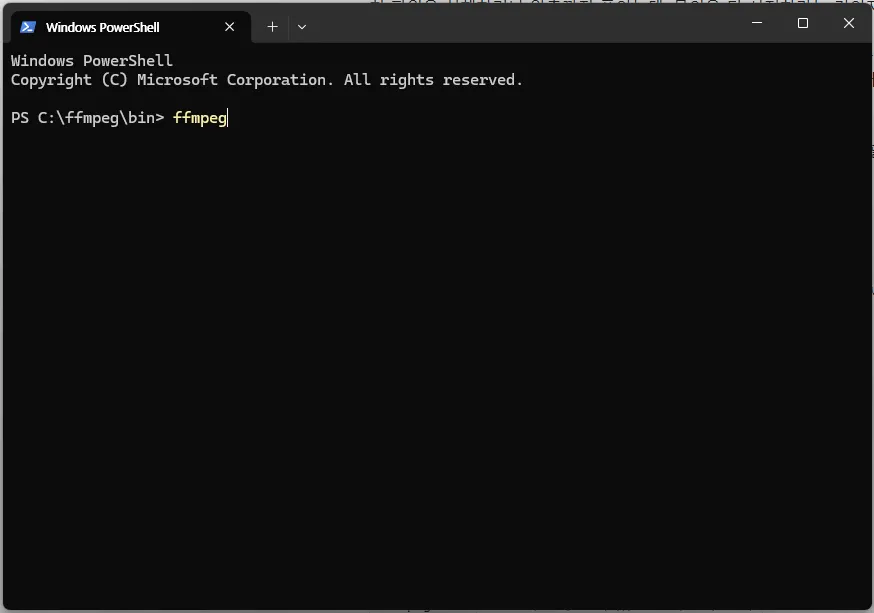 If the folder is not registered in PATH, you need to go to the folder containing the executable and run it as shown above. To run it from another folder, include its path, such as
 C:\ffmpeg\bin\ffmpeg.exe.
5. How to Add a Folder to PATH on Windows
Using FFmpeg as an example, follow these steps. Menu names may vary slightly depending on your Windows version and display language.
- In File Explorer, find the folder that actually contains
ffmpeg.exe. - Copy that folder’s path, for example,
C:\ffmpeg\bin. - Search for environment variables in the Start menu and open Edit the system environment variables.
- Click Environment Variables.
- Select
Pathunder User variables at the top (or under System variables below) and click Edit. - Click New and add the folder path you copied. If there is no
Pathentry, create one under User variables. - Click OK in each window to save the changes.
- Close and restart any terminals and related programs you are using.
Add a new entry rather than deleting existing paths or replacing the entire value with a single new path. Other programs may depend on the existing entries.
User variables apply to the current user account, while system variables apply to multiple users on the computer. For a tool you will use in your own account, adding it to your user Path is usually sufficient.
For a terminal launched inside another application, such as VS Code, you need to fully close and restart that application too so it can receive the changes.
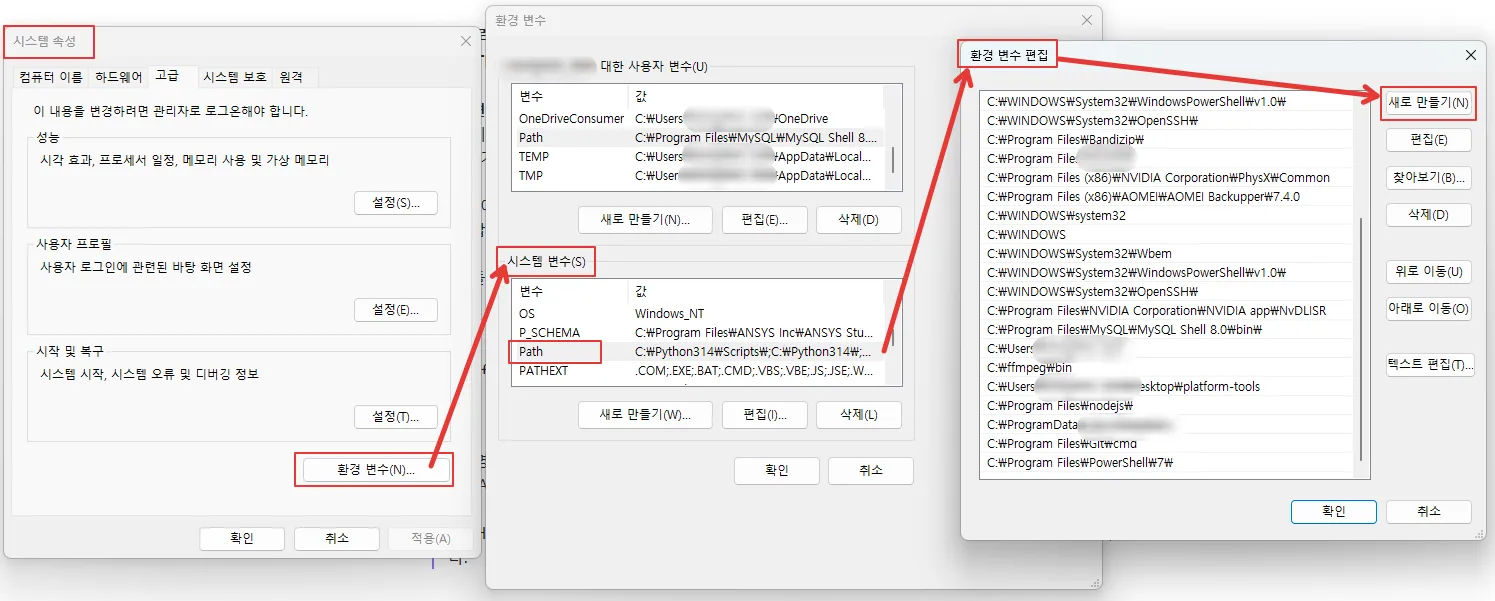 Search for “environment variables” using the search on the taskbar, then follow the steps shown above. The screenshot shows the Korean Windows interface.
6. How to Check That PATH Is Configured Correctly
Open a new PowerShell window and enter:
ffmpeg -versionIf version information appears, FFmpeg can be launched by name in that window.
To check which executable is actually selected, use:
Get-Command ffmpeg.exe | Select-Object -ExpandProperty SourceFor example, the output might be:
C:\ffmpeg\bin\ffmpeg.exeIf multiple versions are installed, check them with:
Get-Command ffmpeg.exe -AllIf executables with the same name exist in several locations, the search order may cause a different version than expected to be selected. However, an app that uses its own configuration or a bundled file may use a different executable from the one selected in the terminal.
7. Do All Open-Source Programs Require PATH Configuration?
No. PATH is not exclusive to open-source software. What matters is how a program launches external tools, rather than whether it is open-source or commercial.
Programs that use other tools may bundle the executables or look for files installed by the user. Loading a library directly within a program works differently from looking for an executable through PATH.
As a user, you can use the following guide:
| Program instructions or status | What to do |
|---|---|
| The required tool is included and works correctly. | Separate PATH configuration may not be necessary. |
| The settings include a button for selecting an executable. | Follow the instructions to select the file directly. |
| The program asks you to install an external tool and add it to PATH. | After installation, add the folder containing the executable to PATH. |
In particular, an FFmpeg path setting inside a program and the Windows PATH environment variable are different settings. Specifying a path inside a program generally tells only that program where the file is.
If a settings dialog asks for an executable, select ffmpeg.exe. If it asks for a folder, select the corresponding folder.
8. Common Problems
| Symptom | What to check |
|---|---|
| The command is not found after installation. | Check that the folder containing the executable is registered in PATH. |
| Adding the folder to PATH makes no difference. | Fully close and reopen the terminal and the application that launched it. |
Adding the ffmpeg folder does not work. | Check whether the executable is inside a bin subfolder. |
| It stops working after moving the folder. | Replace the old location in PATH with the new one. |
| An older version runs. | Check whether executables with the same name exist in multiple locations. |
| It works in the terminal but not in an app. | Restart the app and check its own executable path settings. |
Adding a folder to PATH does not install or download a program. It is a setting that tells the system where the folder is so it can find an executable that already exists.
When you encounter a situation where “the file exists, but the program cannot find it,” check separately whether the file exists and how the program looks for its location.