After trying FreeCAD with MCP, what stood out was being able to describe a shape in natural language and turn it into an actual CAD model. A request such as “Make a plate of this size and put a hole in the center” lets the AI use FreeCAD tools and Python code to create the geometry. You can then inspect the result on screen and continue by specifying dimensions or other conditions more precisely.
For this experiment, I made a plate with a hole and a honeycomb core with repeating hexagonal cells. From simple parts to repeating structures, this proved a useful way to turn an idea into a model.
The images in this article are captures made by reopening the actual FreeCAD files saved during the work. The natural-language requests below are reconstructed examples that describe the models’ requirements; they are not verbatim transcripts of the original conversation.
What changes when you use FreeCAD with MCP?
FreeCAD is a free, open-source parametric 3D CAD application. It lets you build parts using sketches, dimensions, and constraints, then modify the geometry by changing design values. It supports precise solid modeling and importing and exporting several file formats. FreeCAD’s official feature overview
When modeling manually, you create sketches, enter dimensions, and apply features such as extrusions and holes in sequence. With MCP connected, you can start by describing the shape you want. The AI interprets the request and calls connected tools to carry out modeling operations in FreeCAD.
MCP (Model Context Protocol) defines how AI applications connect to external tools. For this work, I used the freecad-mcp project to connect an AI client to FreeCAD. The project consists of an addon running inside FreeCAD and an MCP server launched by the AI client. Natural-language modeling requires an MCP connection and an AI client in addition to FreeCAD. MCP architecture overview, FreeCAD MCP project
The workflow is straightforward:
- Describe the part’s dimensions, holes, repeating patterns, and other requirements.
- The AI uses MCP tools to create objects or execute code in FreeCAD.
- Inspect the model on screen and check its properties.
- Request any changes, then save the result or export it to another format.
Example 1: A plate with a central hole
The first model is a 60 × 40 × 10 mm plate. It has a central through-hole 10 mm in diameter, and its four corners are rounded with 3 mm radius fillets when viewed from above.
You could request this model as follows:
Make a plate 60 mm long, 40 mm wide, and 10 mm thick. Add a central through-hole 10 mm in diameter. Apply fillets so that the four corners have a 3 mm radius when viewed from above. Link the main dimensions to parameters so I can change them later.
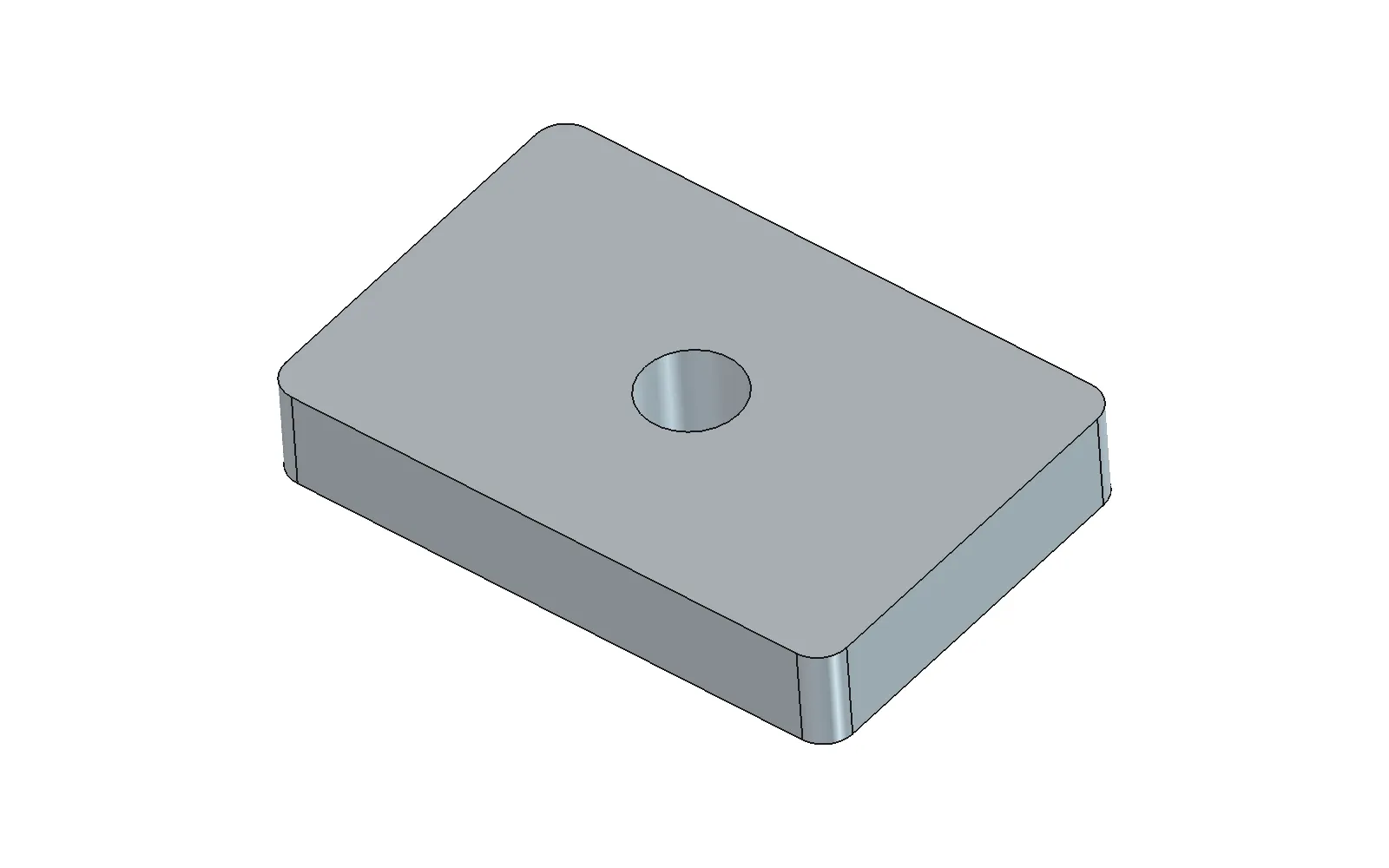
An isometric view of the saved plate model. Seeing the hole in the top face together with the side faces makes the overall shape easy to check.
What I liked about this example was that the model retains an editable design structure. The file contains sketches, a Pad, a CornerFillet, and a ThroughHole. Dimensions in the Parameters spreadsheet are linked to the relevant features through expressions.
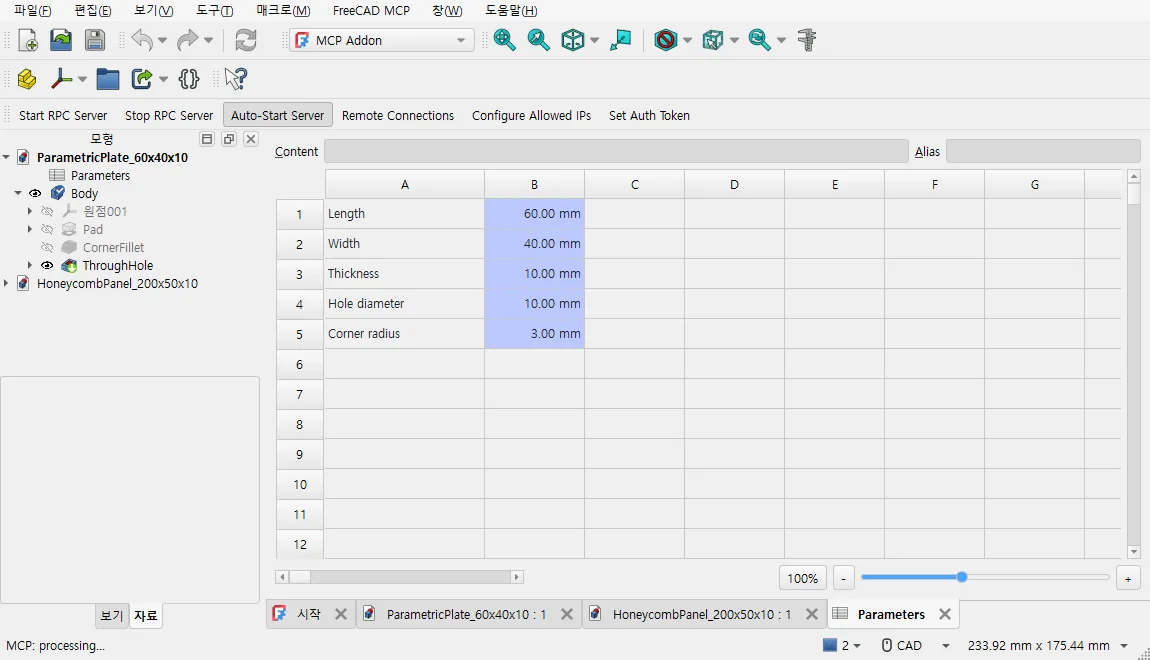
The five dimensions collected in Parameters. The model tree on the left shows the plate’s pad, fillet, and through-hole features.
| Parameter | Saved value | Drives |
|---|---|---|
| Length | 60 mm | Base sketch |
| Width | 40 mm | Base sketch |
| Thickness | 10 mm | Pad length and hole sketch height |
| Hole diameter | 10 mm | Circular hole sketch |
| Corner radius | 3 mm | Corner fillet |
With this structure, a request such as “Keep the length unchanged and only change the hole diameter” is easy to express. You can also edit the spreadsheet values directly and recompute the model. Large changes may prevent a fillet or another feature from working, so the modified geometry still needs to be checked.
Example 2: A honeycomb core with repeating hexagons
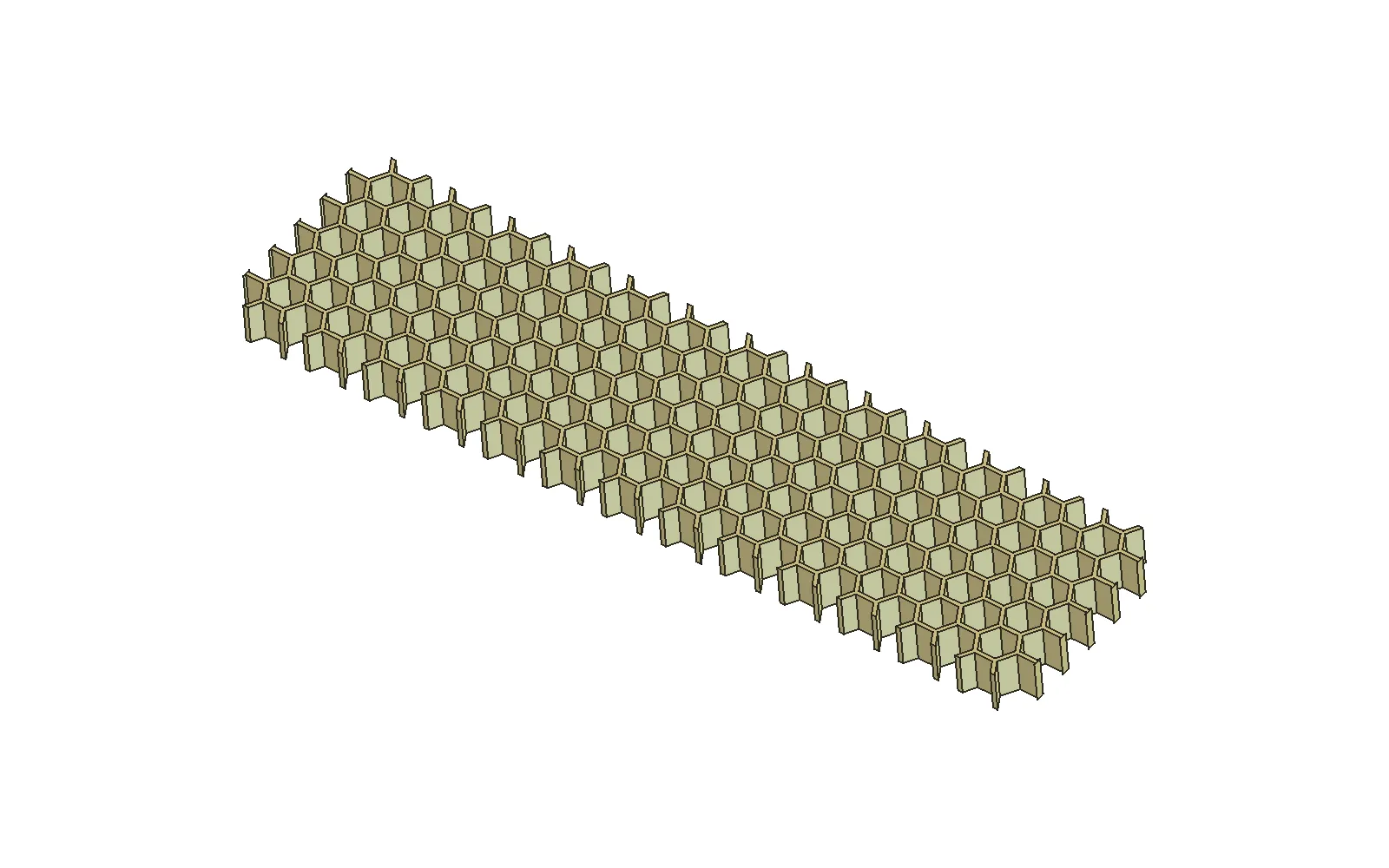
The second model is a 200 × 50 × 10 mm honeycomb core. Regular hexagonal cells are repeated and trimmed to a rectangular boundary. There are no top or bottom face sheets and no separate perimeter frame.
Make a honeycomb core 200 mm long, 50 mm wide, and 10 mm high. Each hexagonal cell should have a side length of 5 mm measured along the wall centerlines, with 1 mm thick walls. Do not add top or bottom face sheets or a perimeter frame. Trim anything extending beyond the rectangular boundary.
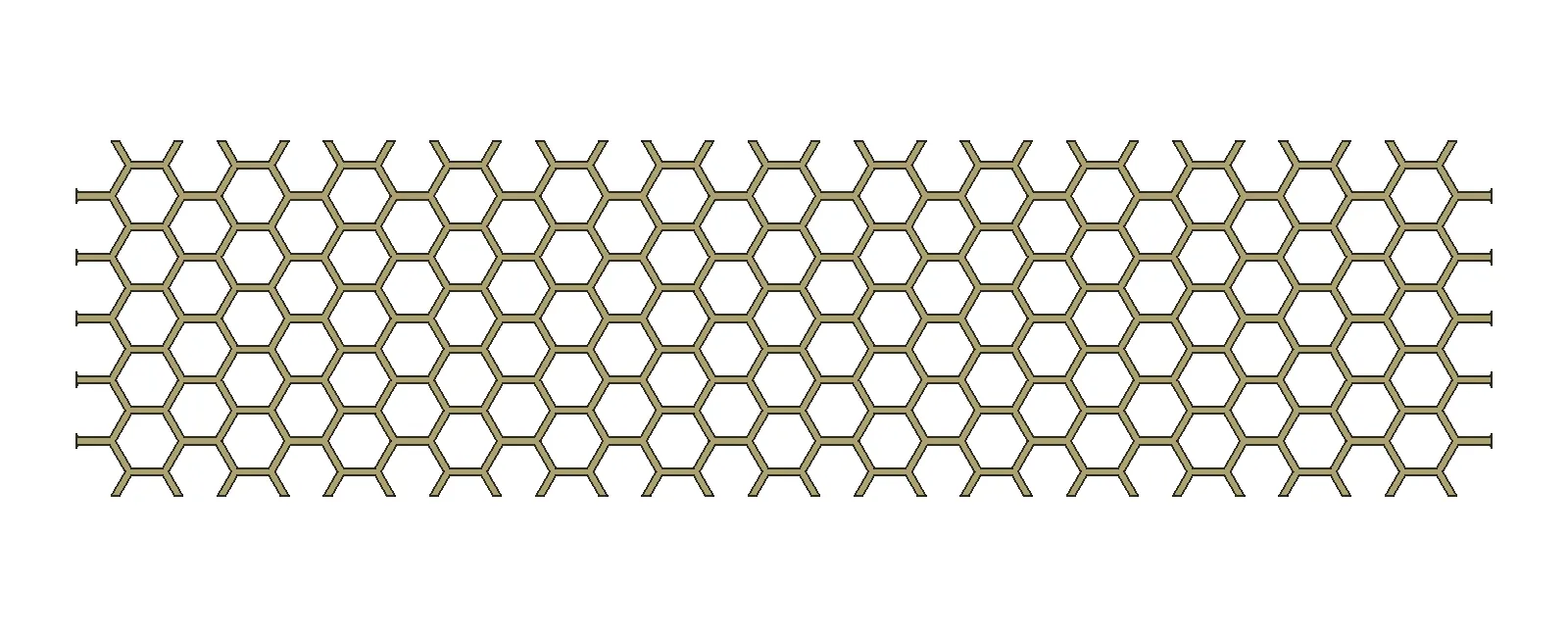
Isometric view (above) and top view (below) of the same honeycomb model. The isometric view shows the wall height; the top view makes the cell layout and trimmed boundary easier to inspect.
Describing construction rules in natural language works particularly well for structures with repeating geometry, such as honeycomb. Once cell size, wall thickness, and the layout area are specified, code can generate the repeating shape.
| Parameter | Saved model specification |
|---|---|
| Overall footprint | 200 × 50 mm |
| Core height | 10 mm |
| Hexagonal side length | 5 mm along the wall centerlines |
| Wall thickness | 1 mm |
| Face sheets and perimeter frame | None |
| Construction method | Generate a cross-section with a macro, then extrude it vertically |
Here, the measurement convention for “a 5 mm side” matters. A cell side measured along the wall centerlines differs from the side of its inner opening. In this model’s macro, the inner opening has a side length of 5 - 1 / √3 mm, approximately 4.423 mm. Including the measurement convention in a natural-language request helps avoid different interpretations of the dimensions.
The saved properties record 175 candidate cells intersecting the overall boundary. This includes cells that are only partially present at the edges, so it does not mean there are 175 complete hexagonal openings.
The plate and honeycomb also differ in how they are edited. This honeycomb file stores the finished geometry as a Part::Feature object. Its dimension properties are recorded as read-only values; changing a property alone does not automatically regenerate the shape. To change the cell size or wall thickness, you modify the input values in the generation macro and run it again. When requesting a model in natural language, it helps to specify how you want to edit it later as well as what shape you want.
Having model files to keep is useful too
I saved the results in FreeCAD’s native .FCStd format and also exported the plate as .stl and the honeycomb as .step. Being able to reopen a model for inspection or continue working with it in another application was useful too.
| Format | Files from this work | Intended use |
|---|---|---|
| FCStd | Native plate and honeycomb models | Reopen in FreeCAD to inspect their structure and properties |
| STL | Plate mesh | Use in a 3D printing slicer or other mesh workflow |
| STEP | Honeycomb CAD exchange file | Transfer geometry to another CAD application |
After reopening the two native files, both models were confirmed to have valid geometry and a single solid each. Their bounding boxes, which describe the models’ overall dimensions, also matched the specified values: 60 × 40 × 10 mm and 200 × 50 × 10 mm, respectively. Checking both the view and the numbers makes the results easier to assess.
What I took away from the experience
The biggest benefit is being able to describe the starting point for a model in words. Even before memorizing menu locations and every operation, you can begin by defining the part’s requirements. I found this useful for simple parts with specified dimensions and repeating shapes with clear rules, such as honeycomb.
The specificity of a request also has a large effect on the result. For rounded corners, for example, specifying both the location and the radius makes the intent clear. Defining whether a hole passes all the way through, where a hexagon’s dimensions are measured, and whether face sheets or a frame are needed gives you criteria for checking and revising the result.
I recommend writing requests in this order: dimensions and units → geometry requirements → editing method → output format. After generation, inspect the model from several directions and check its dimensions and geometry validity. If it will be used for manufacturing or structural assessment, tolerances, materials, strength, and other requirements need their own review.
Getting started
The basic connection steps for the freecad-mcp project used here are listed below. MCP settings screens and configuration files vary between AI clients. See the project’s installation guide for detailed instructions.
- Install FreeCAD and set up
uv/uvxto run the MCP server. - Install the project’s
FreeCADMCPaddon in FreeCAD and restart the application. - In the MCP Addon workbench, run Start RPC Server.
- Register the
freecad-mcpserver in your AI client, then request a model while keeping FreeCAD open.
Start with a simple shape like this plate to get familiar with creating and editing models, then try repeating patterns or more complex parts. Connecting FreeCAD through MCP lets you turn a shape described in words into an actual CAD model. It is worth trying both for people learning CAD and for anyone who wants to quickly explore simple parts or repeating structures.
Related links: FreeCAD website, FreeCAD MCP project, MCP documentation