Overview
L Box is a Windows desktop toolbox for quickly handling common technical and research tasks that would otherwise require opening several separate programs.
L Box v1.0.0 is distributed as a ZIP archive through the official DrLeeWorks GitHub Releases repository.
Main Features and Usage Examples
The screenshots below show L Box running with its bundled sample images for analysis and conversion, and illustrative Korean and English sentences for Text Counter. The analysis results shown are for the sample data.
1) Choose the Tools You Need in One Place
Choose from 12 tools on the main screen. The View menu lets you change the General / Research filter, card size, and sorting order. The Sample menu opens examples for supported image tools.
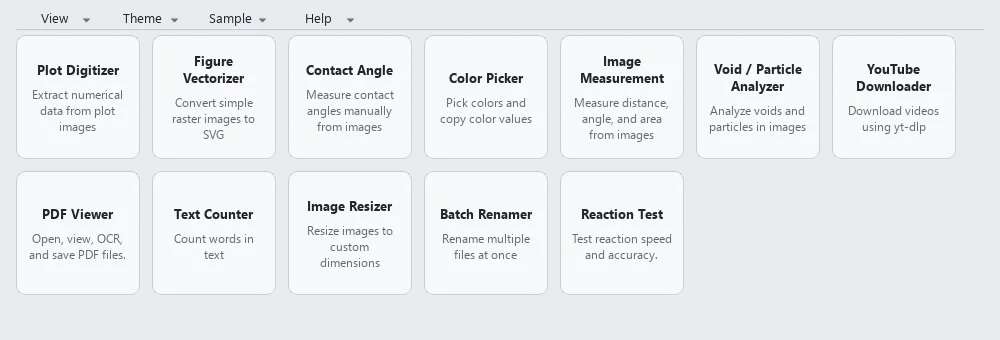
Use each tool’s Guide for instructions and Back to return to the tool selection screen.
2) Extract Coordinates from Graph Images — Plot Digitizer
Open a graph image from a paper or report and use Calibrate to specify the origin, X- and Y-axis reference points, and axis ranges. Choose linear or logarithmic scales, then click points on the curve to add their XY coordinates to the table on the right. Use Export CSV to save the coordinates or Copy to copy the annotated image.
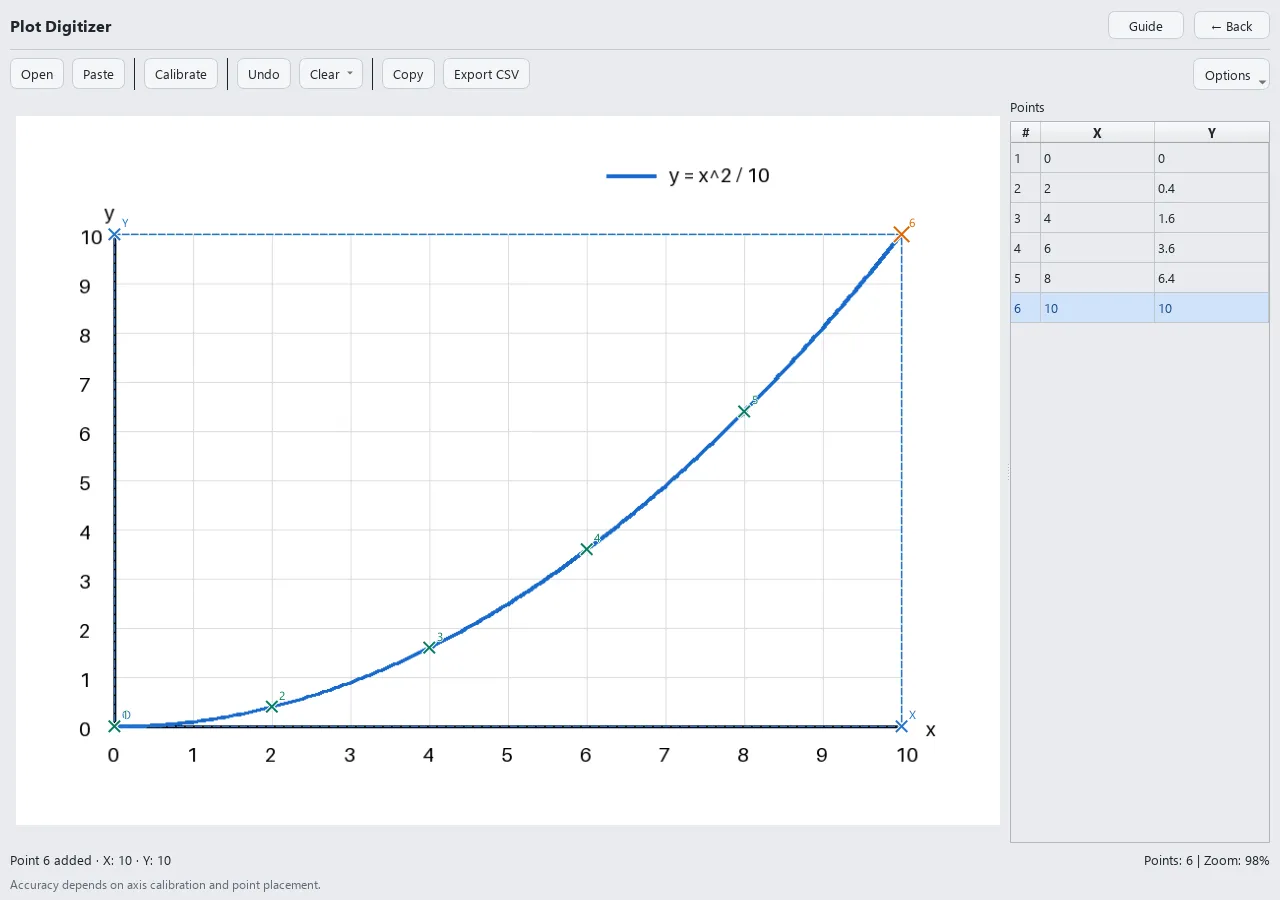
This example extracts six points from the curve y = x² / 10. With real images, axis calibration and point placement can introduce errors.
3) Measure Left and Right Droplet Contact Angles — Contact Angle
Open an image, define the baseline with Baseline, then use Left and Right to select droplet boundary points near each contact point. Click Calculate to view the left, right, and average contact angles. Export the annotated image with Copy or Save.
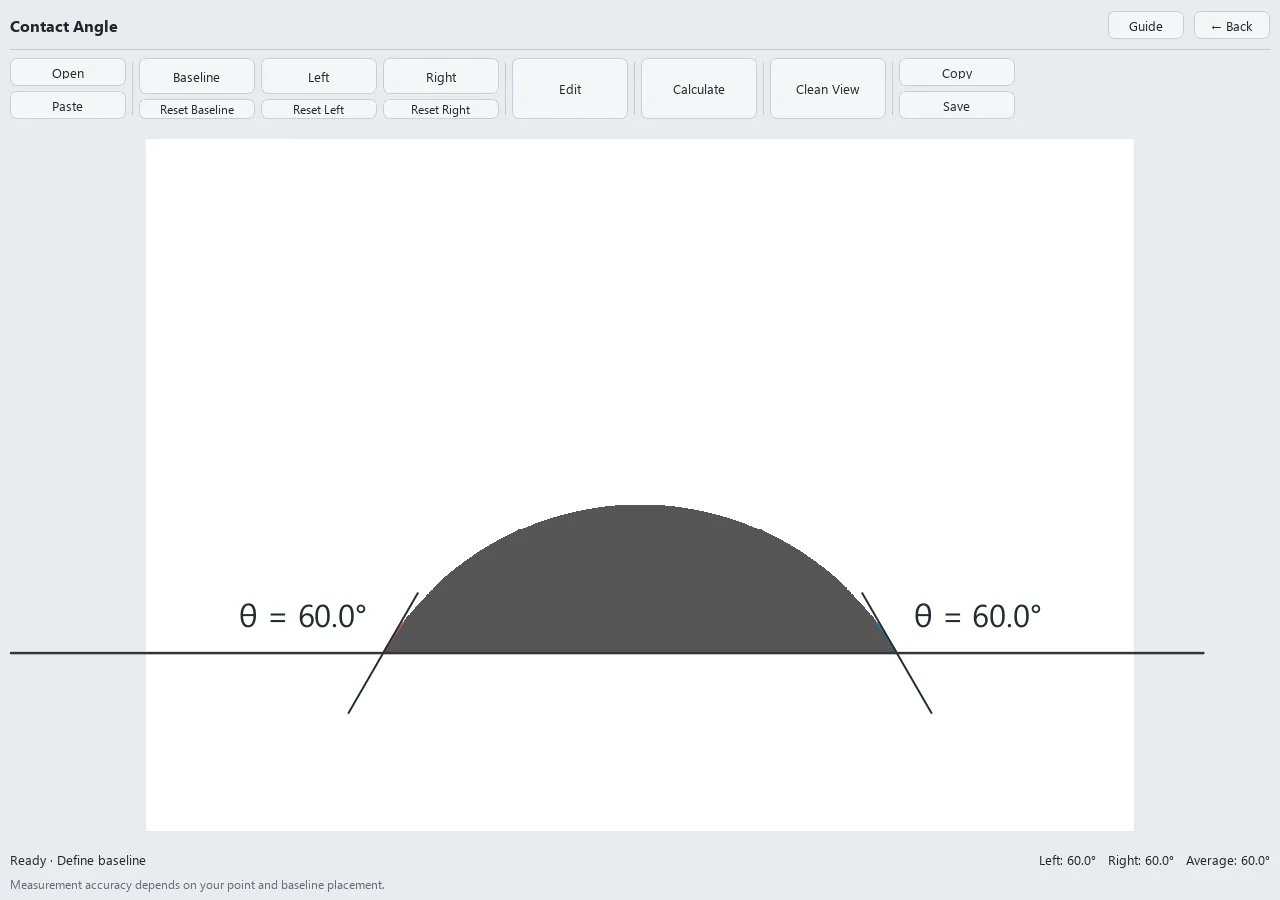
The example has a theoretical contact angle of 60°. Select boundary points close to the contact regions rather than along the entire droplet outline, and check the baseline position carefully.
4) Measure Lengths, Angles, and Areas in Images — Image Measurement
Use Set Scale to select two points a known distance apart and enter their real-world distance. This converts pixel measurements to physical units. Choose Distance, Angle, or Area and place points on the image. For an area, specify the polygon vertices and press Enter or double-click to finish.
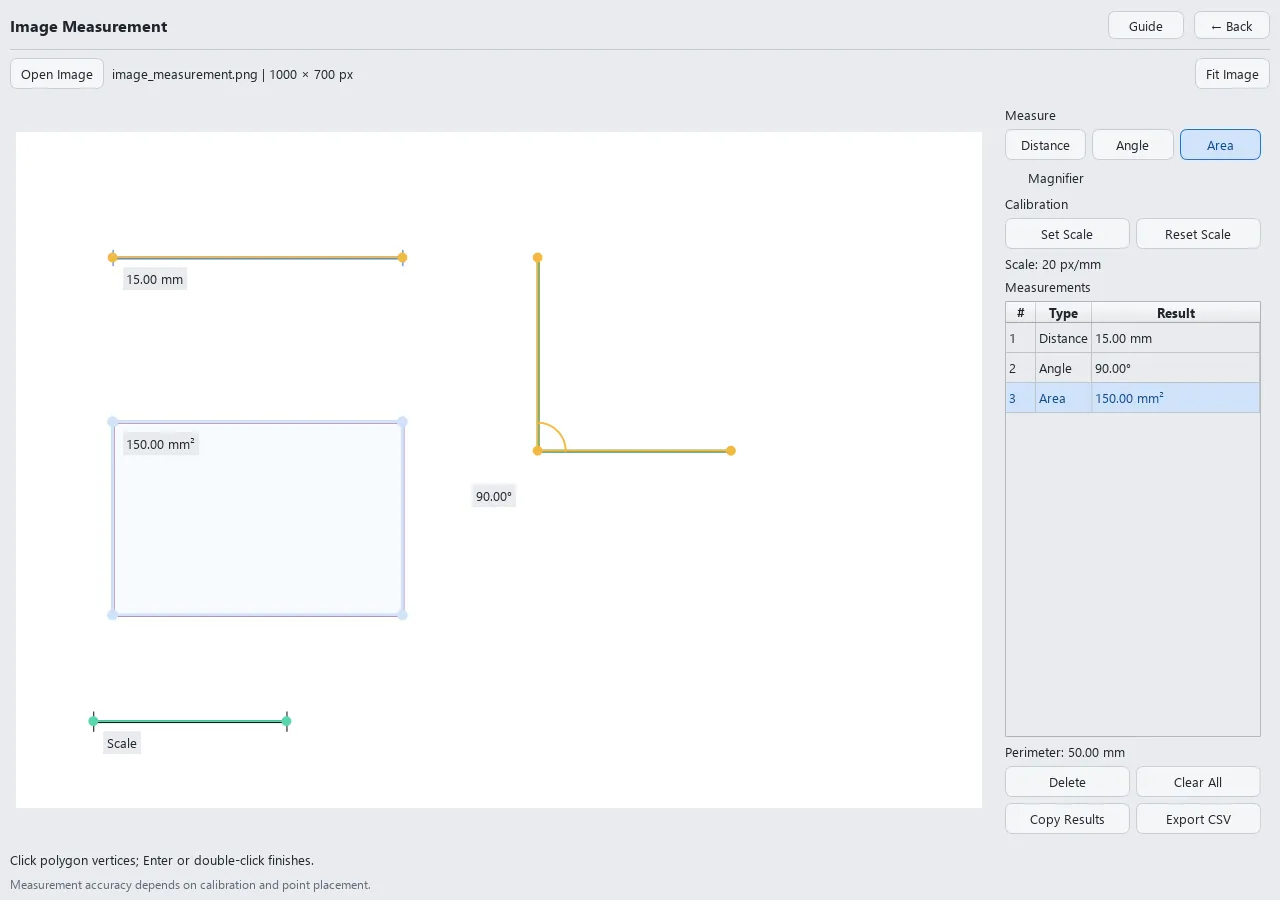
The black reference bar in this example represents 200 px = 10 mm. Review measurements and perimeter values in the results panel, then use Copy Results or Export CSV to export them.
5) Analyze Voids and Particles — Void / Particle Analyzer
Choose Void or Particle, then set Dark / Bright according to whether the regions of interest are darker or brighter than the background. Adjust the threshold and Minimum Area while checking the detected regions, then click Analyze to process the original resolution. Use Select ROI to restrict the region of interest or Set Scale to specify physical units when needed.
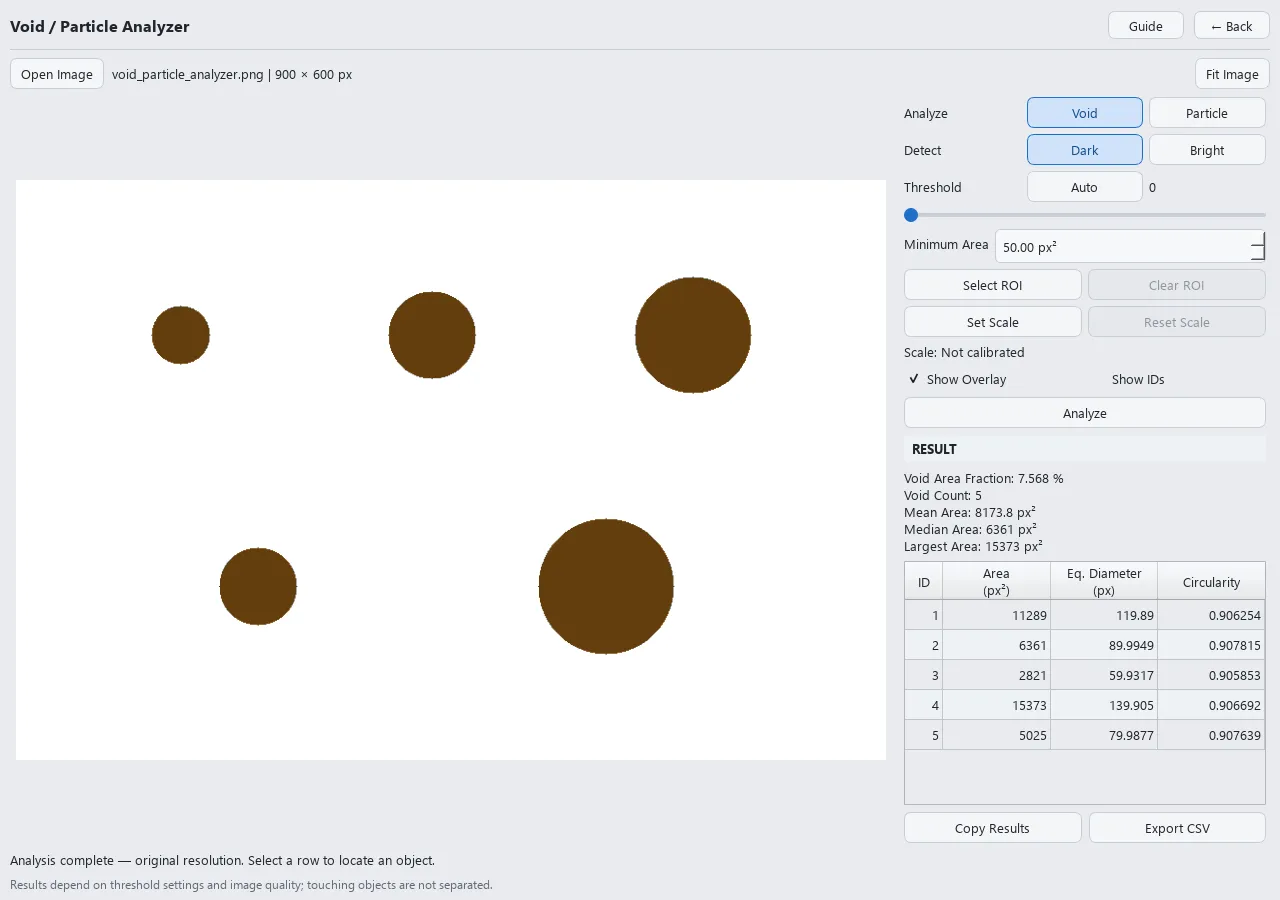
The screenshot shows five dark circular regions detected with the default Void / Dark settings. Their area fraction is approximately 7.568%. The table on the right lists each region’s area, equivalent diameter, and circularity. Touching regions are not automatically separated.
6) Convert Image Outlines to SVG — Figure Vectorizer
Open a simple high-contrast figure or logo and adjust the threshold and contour settings to preview the vector result. Use Preserve Corners to retain sharp corners and export with Copy SVG or Save SVG.
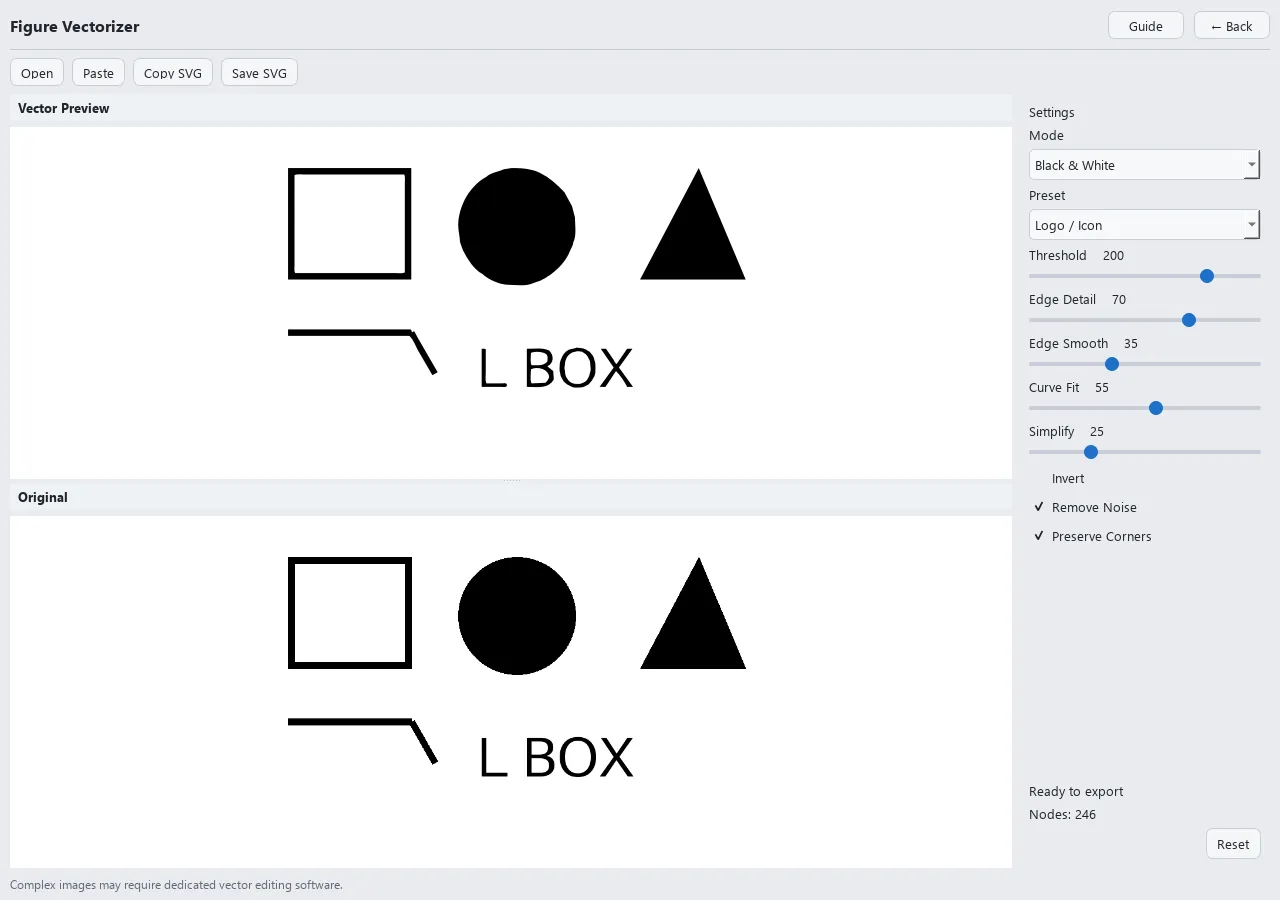
The converted result is shown at the top and the original at the bottom. Letters in the image are converted to outline paths, not recognized as editable text.
7) Adjust Image Dimensions, DPI, and File Size — Image Resizer
Open an image and choose Pixels, Size, DPI, or File Size as the adjustment mode. Select an 80%, 60%, 40%, or 20% preset, or set a Custom target. Check the TARGET panel at the bottom before saving with Save As.
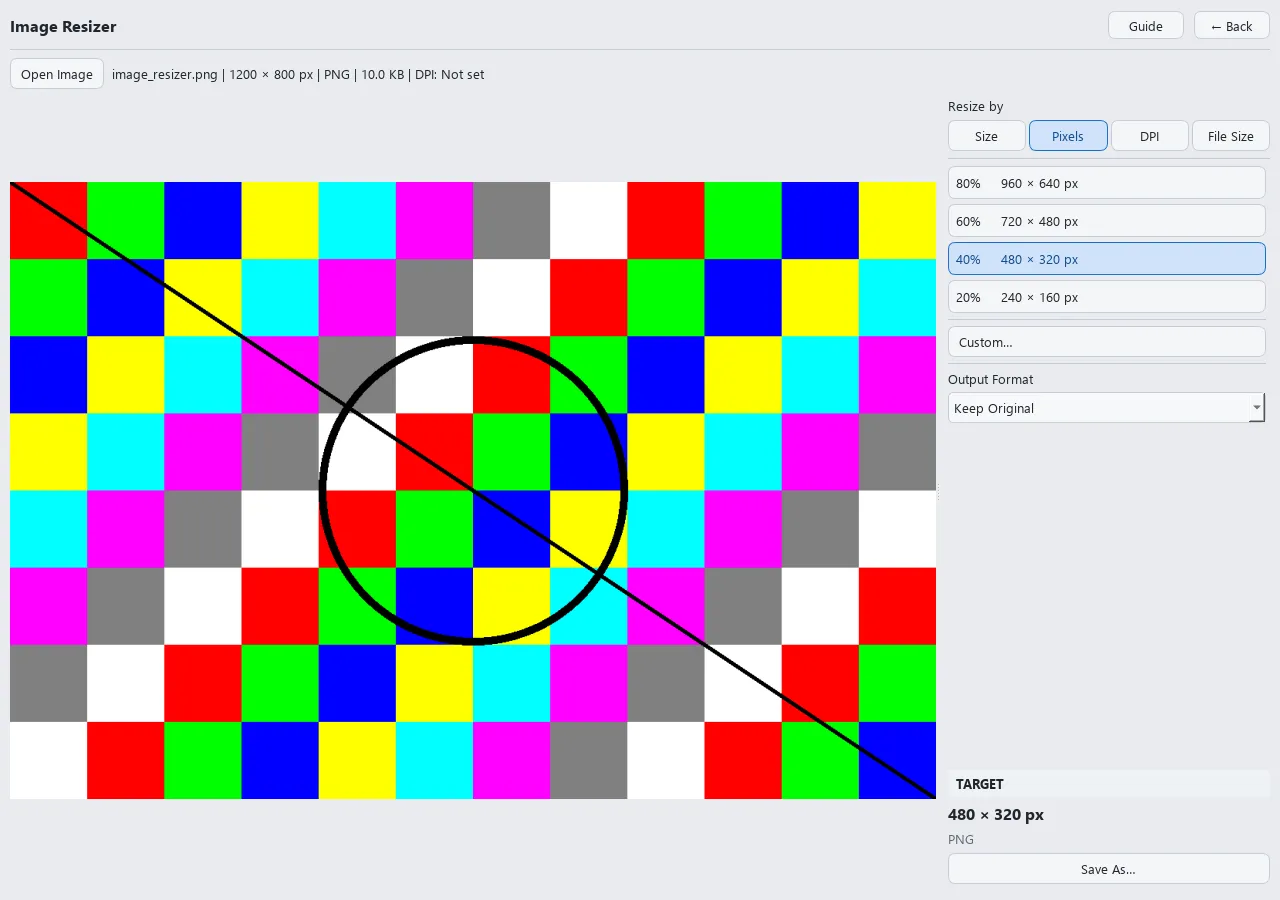
The screenshot shows a 1200 × 800 px image configured for saving at 40%, or 480 × 320 px. Size and DPI preserve the pixel dimensions while adjusting print size and resolution metadata. File Size adjusts JPEG / WEBP compression quality to approach a target size, so not every target can be matched exactly.
8) Count Korean and English Text — Text Counter
Enter an abstract or other text to see live counts for words, characters with and without spaces, sentences, and paragraphs. Choose a limit type and value under Limit to see how much room remains. Use Copy Statistics to copy the counts.
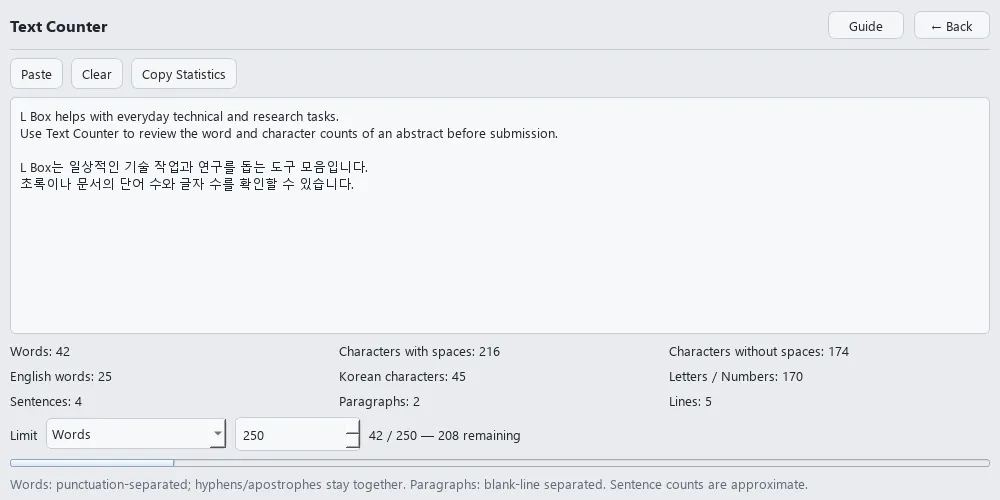
Sentence counts are approximate, and submission websites may count words differently. Entered text is not saved automatically.
9) Other Tools
- PDF Viewer: View PDFs, select text, perform Korean / English OCR, and save searchable PDFs.
- Batch Renamer: Combine text, original names, sequences, and metadata to preview new filenames and rename files in a batch. Undo is available until you close the tool.
- Color Picker: Pick colors from the screen or an image and copy their values in various formats.
- YouTube Downloader: Download videos using a separately installed yt-dlp. Use it only for content you have the right to download.
- Reaction Test: Measure reaction time and accuracy in Simple, Choice, Target, and Go / No-Go modes. Results include display and input-device latency.
Interface and Convenience Features
- Four themes: Light, Dark, Sky, and Green
- General / Research categories, hidden tools, and sorting by recent use
- Tool-specific guides and sample files
- System tray mode that preserves the current tool when the window is closed
- The
Ctrl+Alt+Lglobal hotkey to restore L Box from a minimized state or the tray - Automatic restoration of window size, theme, and tool visibility settings
Installation and Optional Components
Extract the archive and run LBox/LBox.exe. Keep the entire LBox folder together, including _internal, rather than moving only the executable.
The basic tools work without a separate installation. To use YouTube Downloader, install yt-dlp yourself and add it to PATH. When first using PDF OCR, follow the prompts to install Tesseract and the required Korean / English language data in your user folder.
Open Help → About L Box → Open Source Licenses to review the included open-source components and their license documents.
Main features
- Plot Digitizer for extracting coordinates from graph images and exporting CSV files
- Figure Vectorizer for converting raster images to SVG
- Analysis tools for measuring contact angles, distances, angles, and areas in images
- Void / Particle Analyzer for analyzing image regions and exporting results as CSV
- PDF Viewer with OCR and text selection
- Image Resizer for adjusting pixel dimensions, print size, DPI, and file size
- Batch Renamer with live preview and undo
- Color Picker, Text Counter, Reaction Test, and YouTube Downloader
- Four themes, system tray support, a global hotkey, and tool-specific samples
System requirements
64-bit Windows 10 or Windows 11. YouTube Downloader requires yt-dlp on PATH. An internet connection is required when first installing PDF OCR components.
Installation
Download and extract the ZIP, then run LBox.exe in the LBox folder. Keep the entire distribution folder together, including _internal. You can check the SHA-256 checksum and digital signature before running the program.
Changelog
First stable release with 12 practical and research tools, four themes, system tray support, a global hotkey, and tool-specific samples.
Known issues
Windows may not immediately trust the publisher because the certificate is self-signed. YouTube downloads depend on the capabilities of the separately installed yt-dlp. OCR accuracy varies with document and image quality.
Download Information
- Version
- 1.0.0
- Platform
- Windows 10 / Windows 11 (x64)
- Distribution
- GitHub Releases
- Released
- Sep 24, 2026
- Release asset
LBox-v1.0.0-Windows-x64.zip· 113.1 MB- SHA-256
4096446C1E28C0F7C98E6850193F439E251134B8A4247E8001AEF425B4484F26
Digital signature
DrLeeWorks
LBox.exe is signed with the self-signed DrLeeWorks code-signing certificate and includes a DigiCert timestamp.
Certificate details
- Certificate subject
CN=DrLeeWorks- Certificate thumbprint
ECB35144C687AF6D6EF711F0212F8E20592A930E