Overview
A simple Windows capture tool combining image and video capture with various interactive input effects.
LCapture v1.0.0 is distributed as a ZIP archive through the official DrLeeWorks GitHub Releases repository.
Usage Examples
The screenshots below show the current development version of LCapture. Menu layouts and available features may differ in the released version. The image preview uses an L Box screenshot as an example; the video and input effects screenshots show configuration screens.
1) Image Capture
Capture any desired region on your screen directly as an image.
During area selection, use the built-in magnifier to align boundaries precisely. You can preview captured images immediately or configure automatic saving.
Enable Preview / Edit on the main toolbar to review captured images in the editor. Magnifier helps with area selection, while Capture all monitors includes multiple displays.
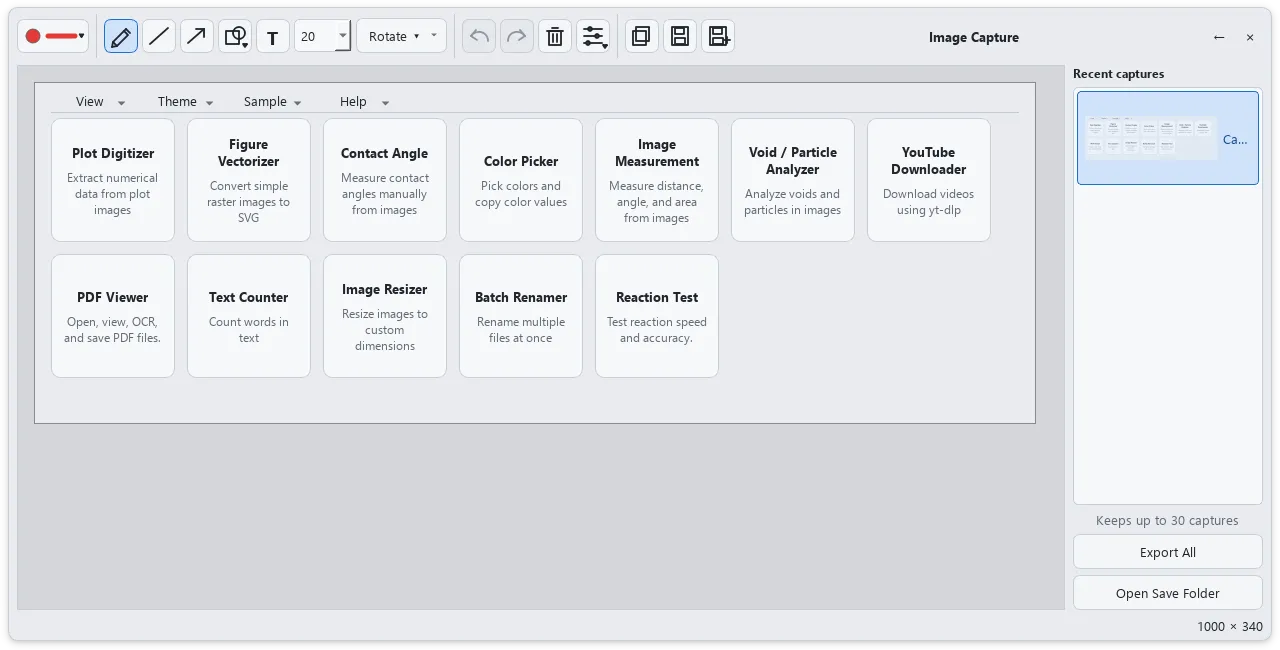
Use the pen, line, arrow, shape, text, and blur tools to explain or mark up a capture. Copy or save the result to share software instructions or illustrate a workflow.
2) Video Capture
Record designated screen areas as high-quality video clips.
Similar to image capture, area selection tools and the magnifier are available to accurately frame the recording area.

Open Video and use the Mode tab to choose Video / GIF and Fullscreen / Area. Under Cursor, choose whether to include the pointer. Screen recording requires FFmpeg, so check that it is supplied with the application or available on your system.
3) Cursor Effects
Apply visual highlights and click animations to make mouse cursor movement and clicks easy to follow during recording.
Highlighting the cursor area and displaying click positions is especially useful when creating tutorial videos or software walkthroughs.
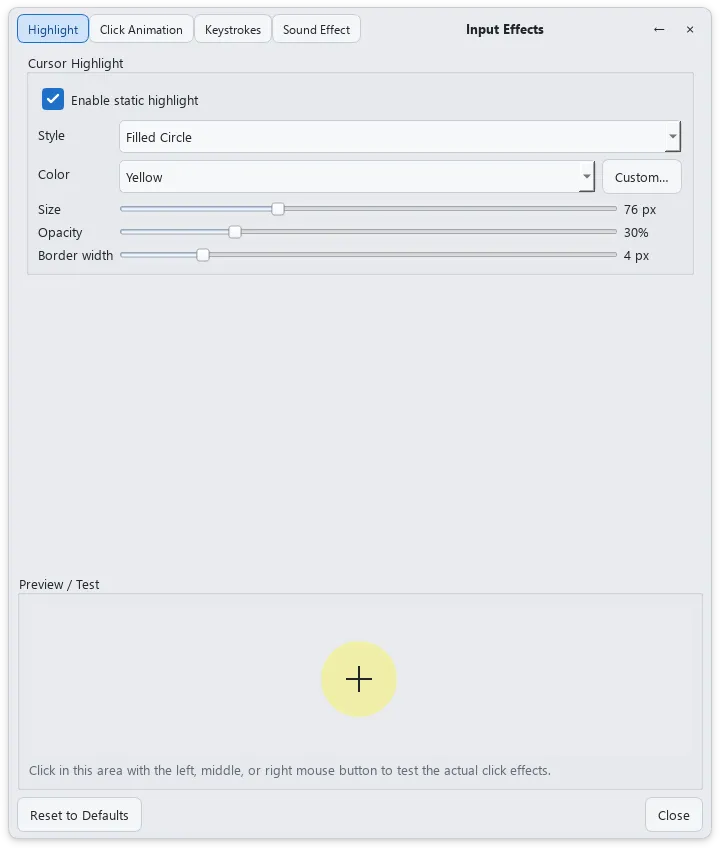
In Input Effects → Highlight, adjust the shape, color, size, and opacity. Use Preview / Test below to choose a highlight that is visible without obscuring the content.
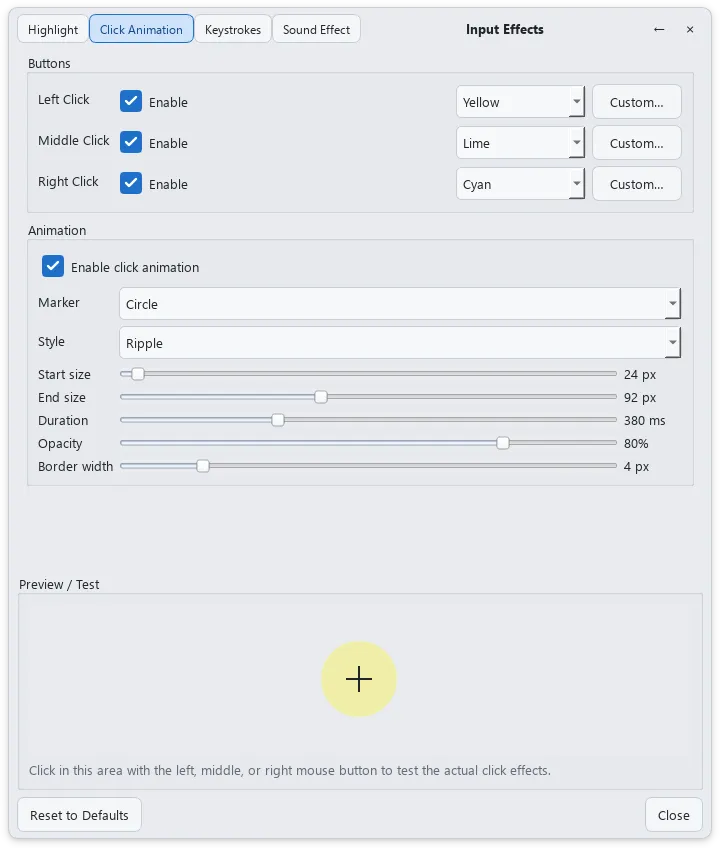
In Click Animation, configure left, middle, and right clicks individually and adjust the size and duration of the effect. This helps viewers follow both pointer location and click timing in a tutorial.
4) Sound Effects
Add auditory feedback to mouse clicks.
You can customize sound effects and volume levels in settings to fit your recording style.
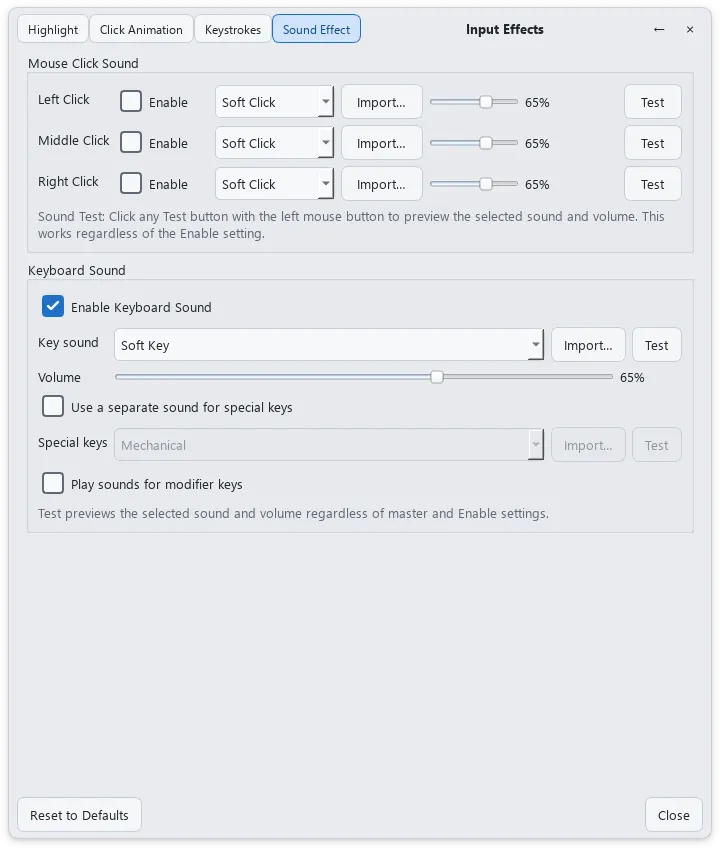
In Input Effects → Sound Effect, choose sounds and volumes for each mouse button and use Test to preview them. Import lets you select a custom WAV file. This is a settings screenshot, not an audio sample.
5) Keyboard Overlay
Display real-time keyboard inputs directly on screen.
Select the target monitor and positioning, with fine-tuning controls to fit your video layout seamlessly.
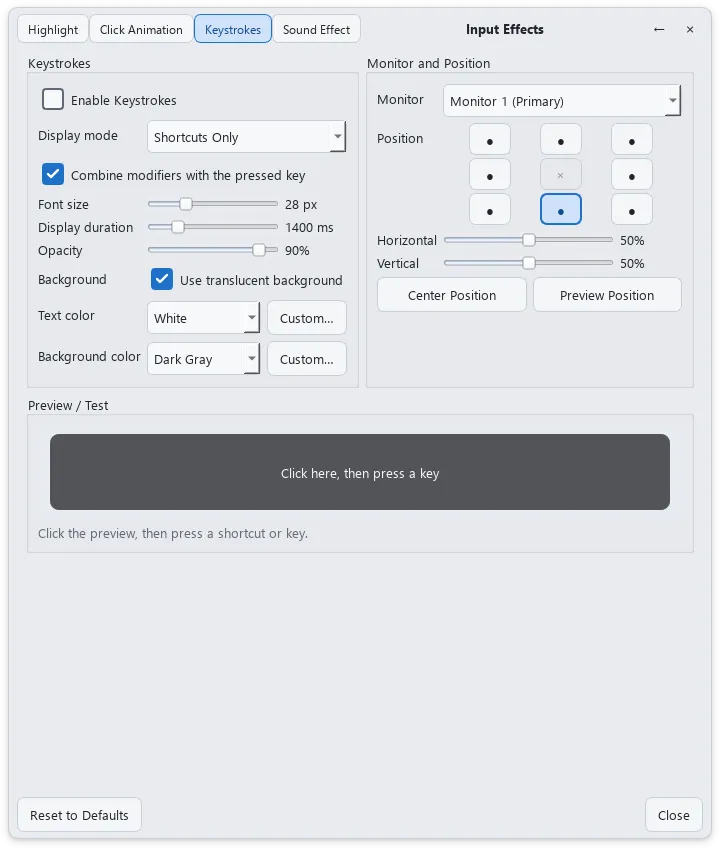
The Keystrokes tab offers Shortcuts Only mode along with font size, display duration, and background settings. Choose a position using the grid on the right and fine-tune it with the position controls. Review which inputs will be displayed before sharing your screen.
6) Keyboard Sound
Add satisfying sound effects to keyboard keystrokes.
Cursor Effects, Sound Effects, Keyboard Overlay, and Keyboard Sound can each be toggled independently, allowing you to use only the effects you need.
Use the Keyboard Sound section of the Sound Effect screen above to choose a sound and volume. You can assign a separate sound to special keys and control sounds for modifier keys. The Keyboard Sound switch on the main toolbar controls whether the effect is active.
7) Compact Floating Interface
LCapture operates as a compact floating toolbar that minimizes desktop footprint.
Easily access core features like Image, Video, Cursor Effects, and Settings, and expand detailed options only when needed.
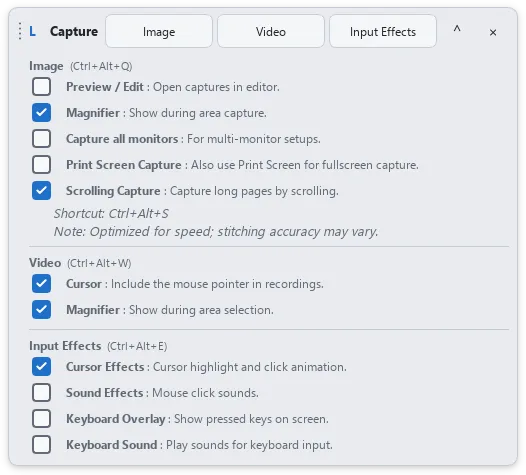
The screenshot shows the expanded options. Toggle Cursor Effects, Sound Effects, Keyboard Overlay, and Keyboard Sound independently to suit the recording. Collapse the options for a smaller toolbar focused on the main buttons.
8) Other Features
- Instant image preview after capture
- Automatic image saving
- Auto-hide window during capture
- Region selection for images and videos
- Magnifier support for boundary alignment
- Individual toggles for Cursor Effects
- Individual toggles for Mouse Sound Effects
- Individual toggles for Keyboard Overlay
- Individual toggles for Keyboard Sound
- Granular settings per input effect
- System tray support
- Minimal floating UI
Main features
- Image capture with custom area selection
- Video capture with designated screen regions
- Magnifier tool for precise capture boundary alignment
- Cursor effects and click visual animations
- Mouse click and keyboard keystroke sound effects
- Keyboard Overlay displaying real-time keystrokes on screen
- Preview and automatic saving after capture
- Compact floating toolbar interface
System requirements
64-bit Windows 10 or Windows 11.
Installation
Download and extract the ZIP, then run LCapture.exe. You can verify the SHA-256 value and digital signature before running it.
Changelog
First stable release with image/video capture, magnifier, cursor effects, audio effects, and keyboard overlay.
Known issues
No known issues
Download Information
- Version
- 1.0.0
- Platform
- Windows 10 / Windows 11 (x64)
- Distribution
- GitHub Releases
- Released
- Sep 12, 2026
- Release asset
L-Capture-v1.0.0-Windows-x64.zip· 50.1 MB- SHA-256
0598344EE1E5AF03F4E42767EFA447C9B25C15A1167FD3425912B22CFACFD883
Digital signature
DrLeeWorks
LCapture.exe is signed with the self-signed DrLeeWorks code-signing certificate.
Certificate details
- Certificate subject
CN=DrLeeWorks- Certificate thumbprint
85A39CE31AAE9D574095536D716F999DEA37F34F