When GPT-6 Astra appeared, one capability that caught my attention was creating Blender models through natural-language requests. I tried modeling through the ChatGPT desktop app in an earlier post, and I still find it useful for modeling equipment and tools. However, using it has also highlighted a couple of inconveniences.
- Much of my work happens in VS Code, but I had to switch to a separate AI app to request Blender modeling.
- When I wanted a model revised, it was difficult to tell how thoroughly the AI had inspected the current scene before making changes. The result sometimes felt heavily dependent on its inferences.
This time, I connected Blender MCP to Codex in VS Code. I could request work in the VS Code chat panel and let Codex use connected tools to inspect and modify the Blender scene. I was interested in four potential benefits.
- A shared workspace: I can continue coding and requesting modeling work in the familiar VS Code environment. Blender stays open alongside it to execute the modeling work and display the results.
- Revisions informed by the scene: Codex can use tools to query the current objects and scene information, then modify the relevant parts. Specifying what to inspect may help reduce vague follow-up requests.
- Flexible choice of AI model: Blender modeling requests can also be handled by AI models other than Astra that can use the connected MCP tools. I can switch AI models to suit the task and apply creation or revision work to the same Blender scene.
- Working on other tasks alongside modeling: When Astra controls the screen through Computer Use during modeling, sharing the mouse or keyboard can be difficult. Running Blender operations through MCP tools does not require that screen control, so I can continue working on documents or code while modeling is in progress.
This post describes my experience installing Blender MCP and connecting it to Codex in VS Code. I then use an MTS 810 fracture toughness test setup to illustrate how requests and inspections can work together, and show the resulting model.
How does MCP change the workflow?
MCP (Model Context Protocol) is a protocol that connects AI systems to external tools. This setup follows the sequence natural-language request → Codex → MCP server → Blender add-on → 3D scene. Although that looks like several steps, the user-facing experience is still a natural-language request followed by a 3D scene, with the potential for a more efficient workflow. VS Code is where I enter requests, Codex interprets them and calls tools, and Blender performs the actual modeling.
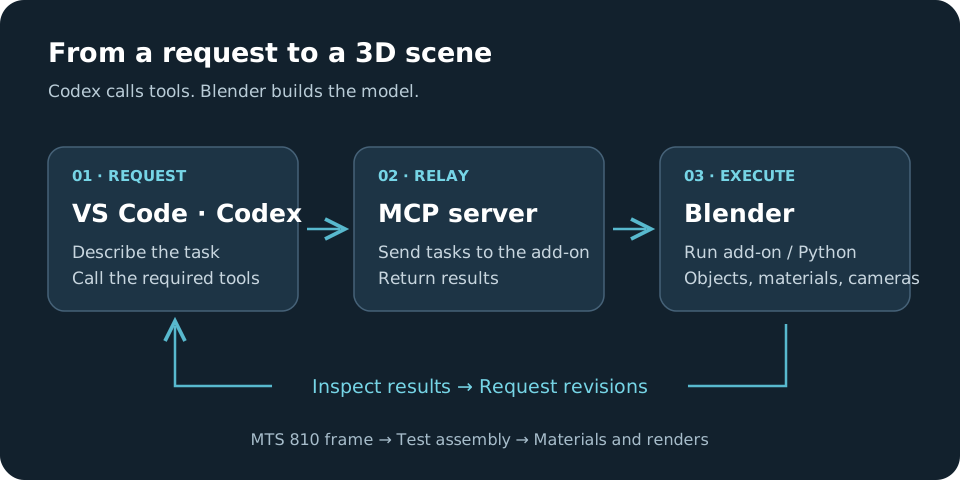
Requests are entered in VS Code, while objects and materials are created in Blender. After inspecting the result, I can continue with a revision request.
Blender MCP consists of an MCP server and an add-on running inside Blender. The server relays requests, the add-on executes them in Blender, and Blender Python operations are also supported. Project architecture
The useful part of this connection is being able to inspect scene information after a task has been executed. For example, I can ask Codex to query the specimen and grip positions, inspect a close-up view, and correct misaligned parts. MCP itself does not judge the model or guarantee accuracy. Codex obtains information through the connected tools and decides what to change, while the user reviews the final result.
Connecting Blender MCP and Codex
The following is an example setup for Windows. It is not a verbatim installation log from my modeling session.
Blender MCP is a community project. Its current repository and executable package use the name mcp-for-blender. Panel names and button labels may differ between versions. Installation instructions
In my case, I set up the environment by repeatedly sharing errors with ChatGPT, asking for solutions, and applying them. Working through the setup conversationally may therefore be smoother than following the steps below rigidly. If, like me, you mainly work in VS Code, a useful tip is that you can work through the setup using its integrated terminal and Codex chat panel without visiting websites yourself. Install Blender beforehand.
1. Prepare Blender and Codex in VS Code
Install Blender and make sure you can use Codex in VS Code. For extension installation and basic usage, see Getting started with Codex in VS Code.
Install uv, which will run the MCP server, using the official instructions. Then check it in a new PowerShell terminal.
uv --version
uvx --version
2. Install and check the Blender add-on
The project provides this installation command:
uvx mcp-for-blender install-addonIn Blender, enable MCP for Blender under Edit → Preferences → Add-ons. Press N in the 3D viewport to open the sidebar and check the server status in the MCP panel. If it is not running, use the start or connect button. The default port is 9876. Add-on installation
3. Register the MCP server with Codex
Codex supports MCP in both the CLI and the IDE extension. You can register a server in the user configuration file, ~/.codex/config.toml. On Windows, this is in the .codex folder under your user home directory. Keep your existing settings and add the following entry. OpenAI MCP configuration documentation
[mcp_servers.blender]
command = "uvx"
args = ["mcp-for-blender"]
If the Codex CLI is installed, you can register it with the following command instead. Use one method or the other.
codex mcp add blender -- uvx mcp-for-blenderReopen VS Code after configuring the server, then check the connection in a new Codex conversation. If Codex cannot find uvx, use Get-Command uvx in PowerShell to find the executable and specify its path in command. The project’s Codex configuration example
Before requesting a complete machine, ask for scene information to check whether the connection works.
Use Blender MCP to inspect the currently open scene and list its objects. Do not modify the scene yet.
If the connection fails, first check whether the Blender add-on is running, whether the port matches, and whether Codex can find the server executable. Before modifying an existing model, saving a copy of the .blend file also makes it easier to revert and compare changes.
What should you ask for after connecting?
Once the connection works, you can request a model. My subject was an MTS 810 fracture toughness test setup with a CT specimen, grips, and a CMOD gage. I hope to introduce the test method in a separate post. For equipment like this, describing the test configuration you want to show, as well as naming the machine, makes the modeling target clearer.
The following are example requests based on the result, rather than verbatim transcripts of my original conversation.
Describe the machine and the test
Use Blender MCP to model an MTS 810 materials testing machine. Include two columns, an upper crosshead, a lower base, and control panels. In the center, place a fracture toughness test setup using a CT specimen. Keep the machine frame and test assembly separate so they are easy to modify later.
Check the overall proportions and the available test space first. If the column spacing or the size of the test assembly looks wrong, adjust the main shapes before adding small details.
When requesting the initial model, it helps to provide several reference photographs. I supplied photographs of the machine, specimen, and test setup.
Describe how the test components connect
Connect the CT specimen to upper and lower clevis grips using pins. Add a CMOD gage and its contact points at the specimen’s notch mouth, along with the gage cable. Provide a close-up view so I can inspect how the specimen, pins, and grips connect.
Specifying how to inspect the result also helps put the MCP tools to use.
Query the positions and dimensions of the specimen, grips, and pins in the current scene, and inspect close-up front and side views. If connections are misaligned or parts overlap, correct those areas and inspect them again.
This goes beyond asking for “more detail”: it identifies what to inspect and what information to use. Parts that look convincing from the front may overlap or sit apart when viewed from the side, so checking several directions matters. Position and dimension queries alone do not verify every interference or dimensional error, which is why I also ask for visual inspection.
Finish the materials and renders
Give the painted frame, metal columns, grips, and black hoses distinct materials. Set up one camera for the complete machine and another for a close-up of the specimen and gage. Adjust the lighting so that metal surfaces and small components are clearly visible.
The overall and close-up renders serve different purposes. The first shows the machine’s proportions and layout; the second shows the test assembly and surface details. The results below use these two views.
The result: an MTS 810 fracture toughness test setup
The finished model shows an MTS 810 machine with a CT specimen mounted for fracture toughness testing. The exterior alone could look like a general materials testing machine, but a closer look at the central assembly reveals the intended test.
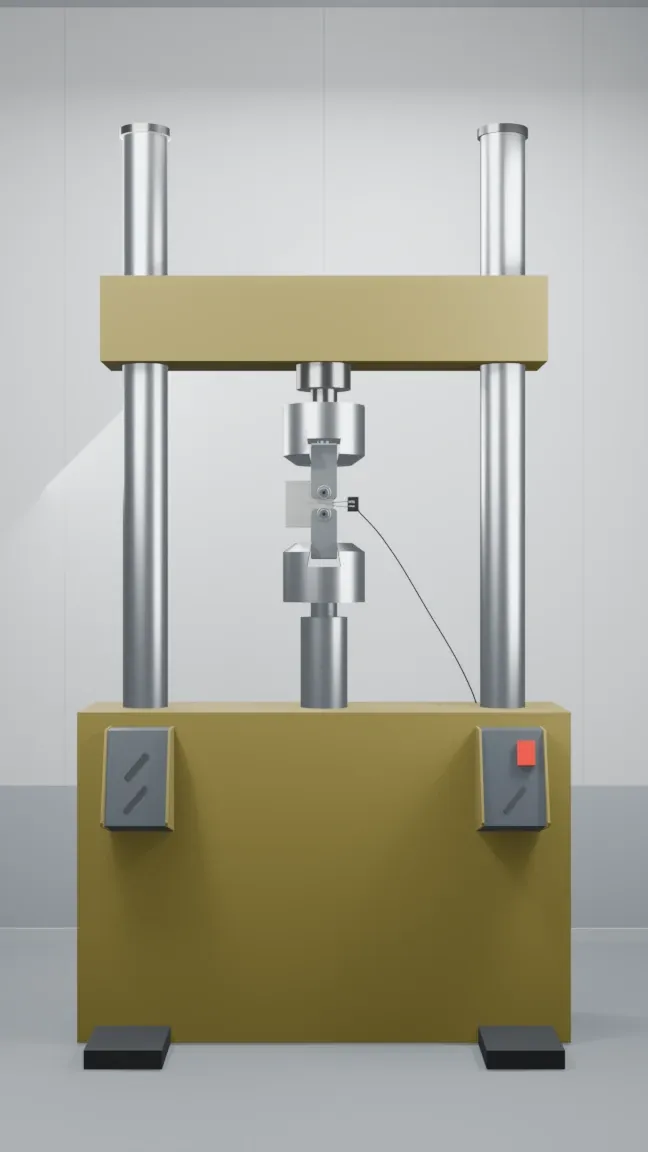
The latest overall view of the revised MTS 810 model. The machine frame and control panels are shown in a laboratory setting, with a CT specimen, grips, and CMOD gage in the center. This is a Blender render, not a photograph of the actual machine.
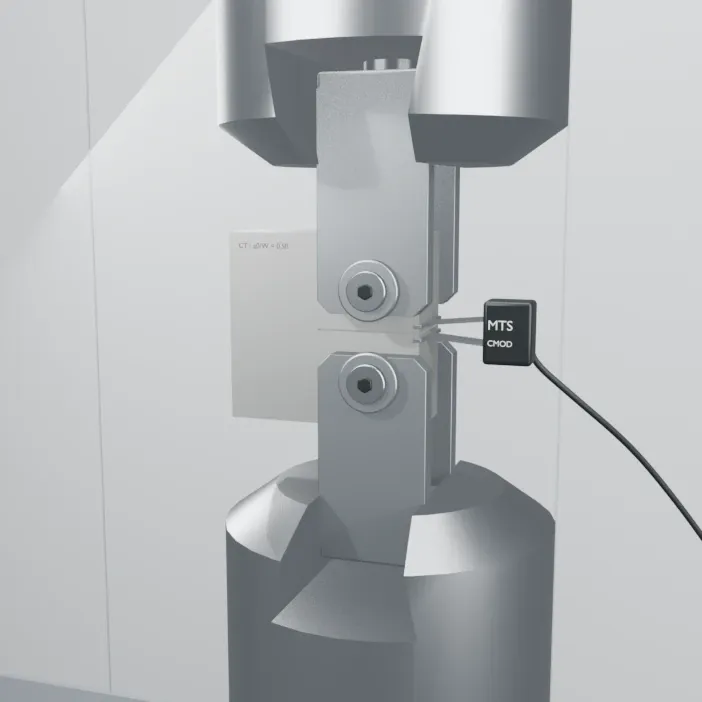
A close-up of the latest model’s test assembly. The CT specimen is pinned to the upper and lower clevis grips, with the CMOD gage contact points at the notch mouth. This view shows the specimen and grip thicknesses and the gage contact positions.
Here are the main features to look for.
| Component | What the model shows |
|---|---|
| Machine frame | Two columns, an upper crosshead, and a lower base surrounding the test space. |
| CT specimen | A plate-shaped specimen with a notch and upper and lower pin connections. |
| Clevis grips | Upper and lower grips connected to the specimen by pins, with forks that accommodate the specimen. |
| CMOD gage | A small gage body, contact points, and a cable positioned at the notch mouth. |
| Surrounding details | Control panels, an emergency-stop button, pin retainers, and the gage cable completing the machine’s appearance. |
CT stands for Compact Tension. In this type of setup, the grips and pins that transfer load to the specimen and the arrangement for measuring crack-mouth opening are important. CMOD stands for Crack Mouth Opening Displacement. MTS describes both its 640 clevis grips for fracture mechanics testing and its clip-on displacement gages.
What stands out in the close-up is the relationship between the small components. The specimen sits between the grips, the pins connect them, and the gage contact points face the notch mouth. Adding the gage cable and laboratory background makes the model feel more like the equipment familiar from a laboratory.
This is a visual reconstruction of the equipment and test setup. Some dimensions are approximate; it is not a design model based on manufacturer drawings or a model verified for compliance with a test standard. Visual detail and the accuracy of component dimensions, alignment, and gage mounting conditions need to be assessed separately.
Reflections after using it
This setup let me request work in the familiar VS Code environment and inspect the result in Blender. I could continue requesting modeling work without switching to a separate AI app, and the result was fairly detailed even for equipment with many components and connections.
It was also useful to be able to query the scene through connected tools and specify what to inspect. A revision request can identify a particular component’s position or connection instead of stopping at “I don’t like the result.” However, I did not quantitatively compare accuracy or the number of revisions, so I cannot conclude that an MCP connection always produces a more accurate model with fewer requests.
The user still needs to explain what they want and judge the result. For engineering equipment, specimen-to-grip connections and measurement locations matter alongside appearance. Requests and reviews informed by knowledge of the subject help bring the model closer to its intended purpose.
This experience made me see Blender MCP and Codex as a useful combination for illustrations of laboratory equipment and educational visuals. Turning a test setup described in words into an editable 3D model proved more practical than I had expected.